
Tutorial
How it works:
The Kinetarium software contains all shows and games that are available. As soon as you launch a game, your planetarium visitors can join in by opening a website on their smartphone.
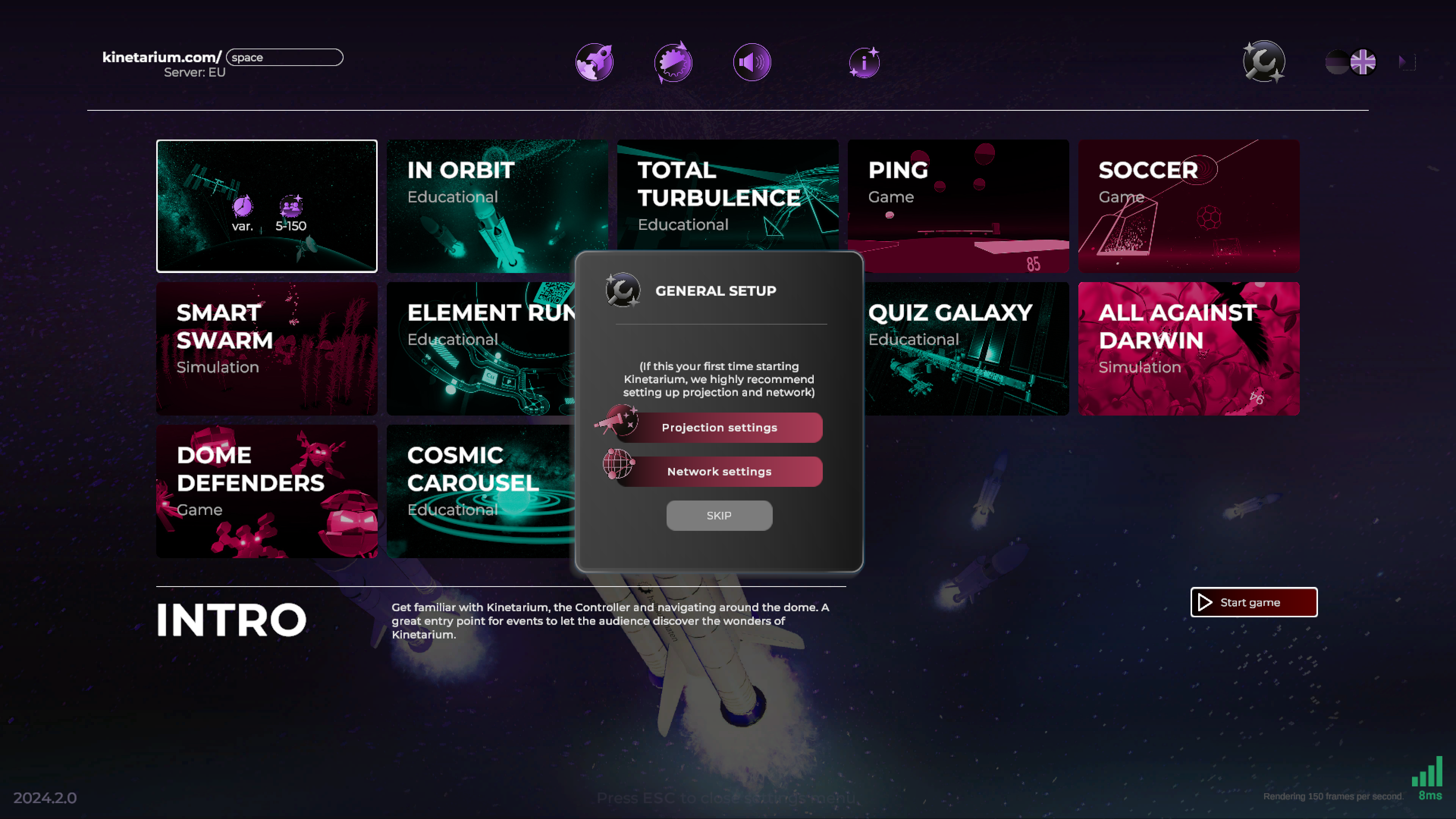
All Kinetarium settings are placed right in the main menu.
Launching Shows and Games:
Install Kinetarium. Start the Kinetarium Installer and navigate through the guided setup. When finished you get the option to directly launch Kinetairum.
Alternatively you can launch it like any other installed software from a desktop shortcut or the Windows start menu.Launch Kinetarium. Should your computer be behind a Firewall, you need to give Kinetarium permission to connect to the Internet. Windows may show a popup like this:
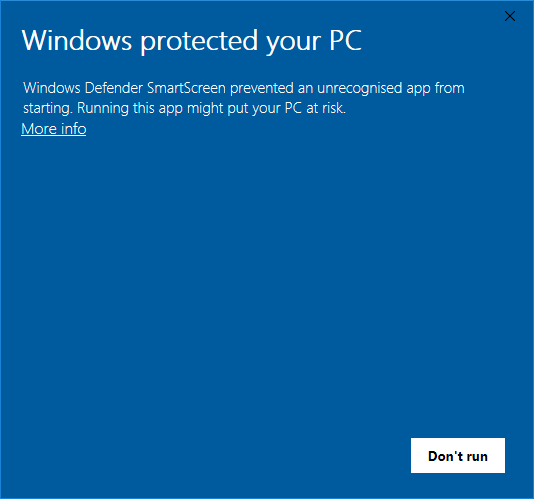
If so, please click “More info” and then “Run anyway”. No worries, Kinetarium is safe and we´ll soon fix this.
Choose a URL: this is the web address visitors have to navigate to, in order to join the game. It should be as simple and as short as possible, eg. kinetarium.com/universe
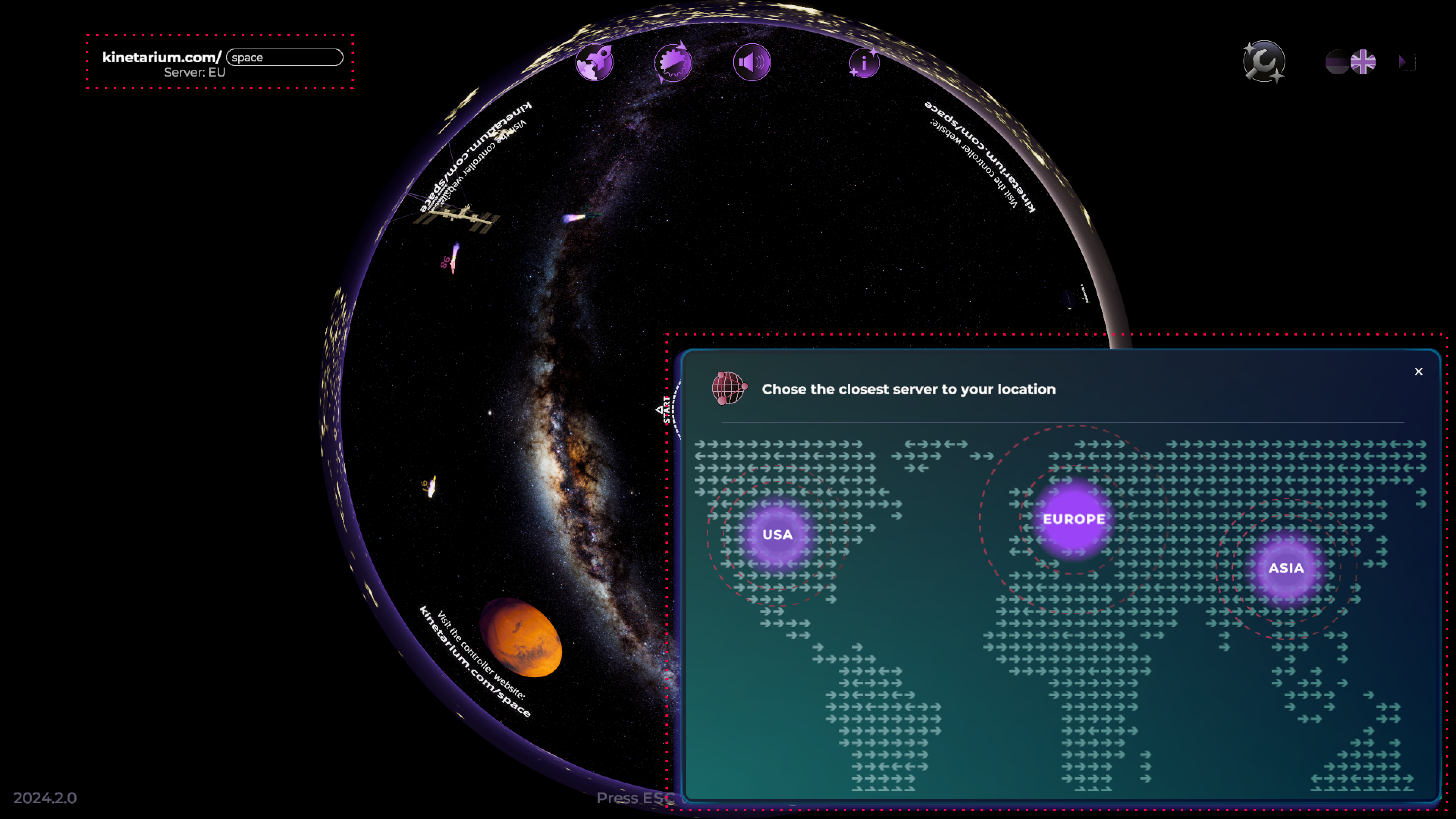
Select your Region: Kinetarium hosts multiple servers all over the world to ensure you can enjoy Kinetarium all around the globe with minimum input delay. Just select the server that is closest to your venue.
Choose a show and launch it. Some shows immediately launch after a short loading time. Other shows offer a timeline and buttons to control playback and progress.
Visitors can now navigate to the URL you chose in step 2 and start playing!
In order to get a first impression of the different shows, you can add computer-controlled players (bots). These should be disabled during regular screenings.
Some shows can be controlled via a timeline and playback buttons.
Projection:
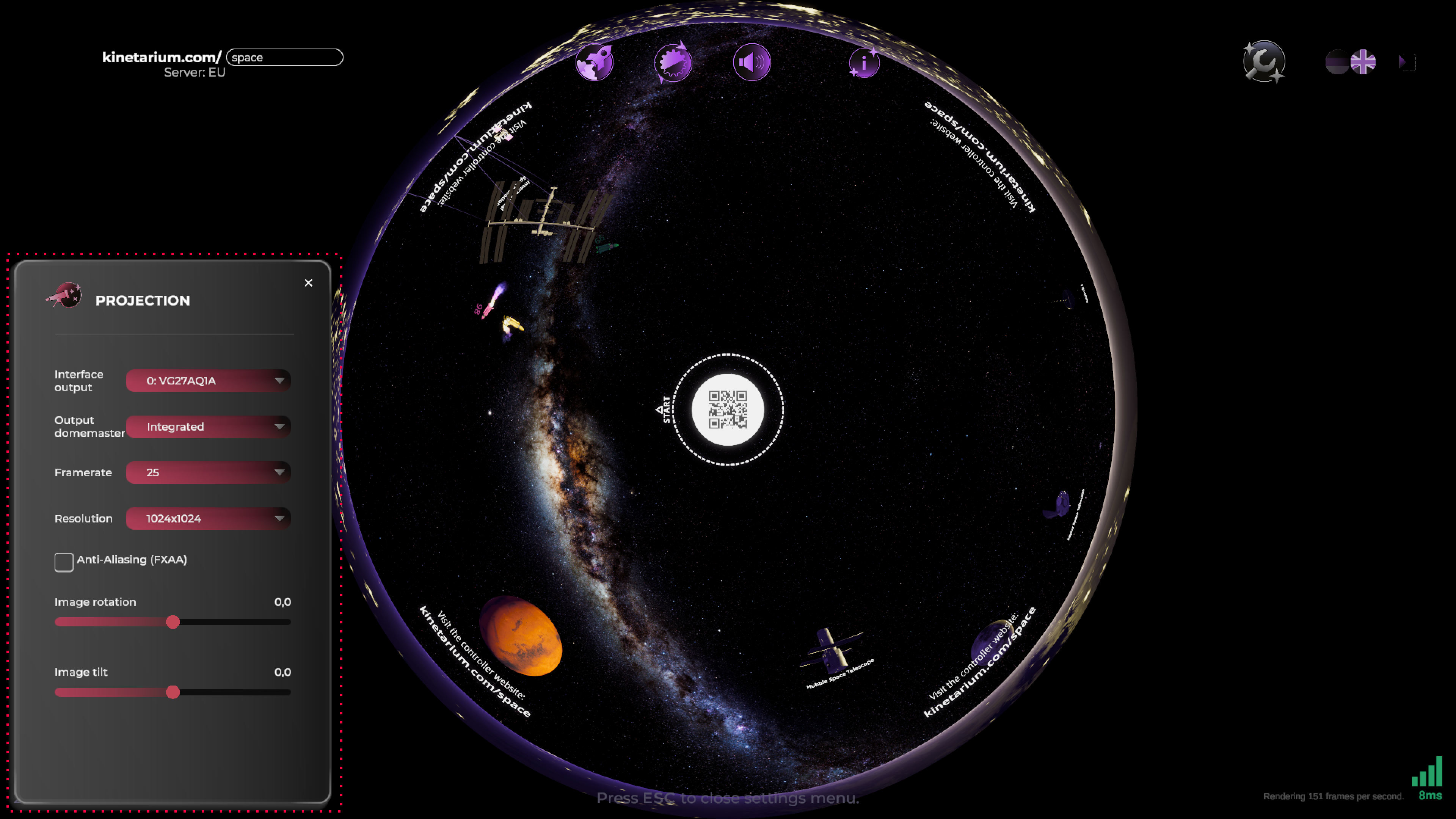
The projection column offers settings to control fulldome image broadcasting. Kinetarium offers two options:
Use the fulldome image directly: If you simply want to connect a single projector (via HDMI or Displayport), you don’t have to set up anything.
Broadcasting via SPOUT or NDI: the fulldome image can be transmitted via SPOUT or NDI, if you are using other fulldome software like VIOSO or Screenberry.
Useful information:
The user interface offers some insight into Kinetariums status and version. You’ll see various messages concerning connection status, kinetarium version and current framerate. These messages can be useful in case there is a problem.
Important Keys:
ESC open and close the main menu
Alt+Enter switch to full screen or windowed mode
Show Controller:
The show controller is a mobile extension of our Kinetarium user interface for flexible control of your show. The operation is quite simple, intuitive and no different than handling an app or website. The tool requires nothing more than a smartphone or tablet, a mobile browser, and a stable and working internet connection.
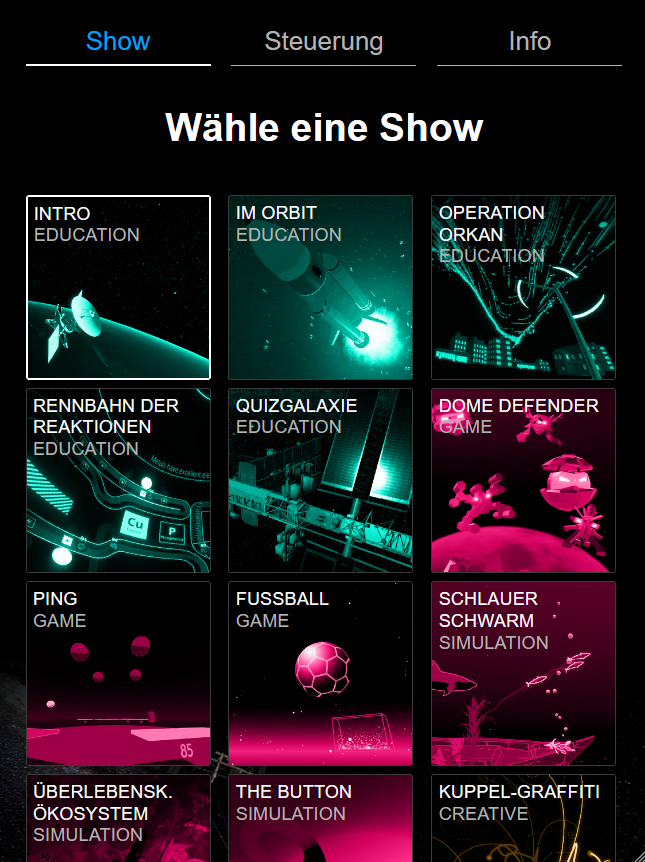
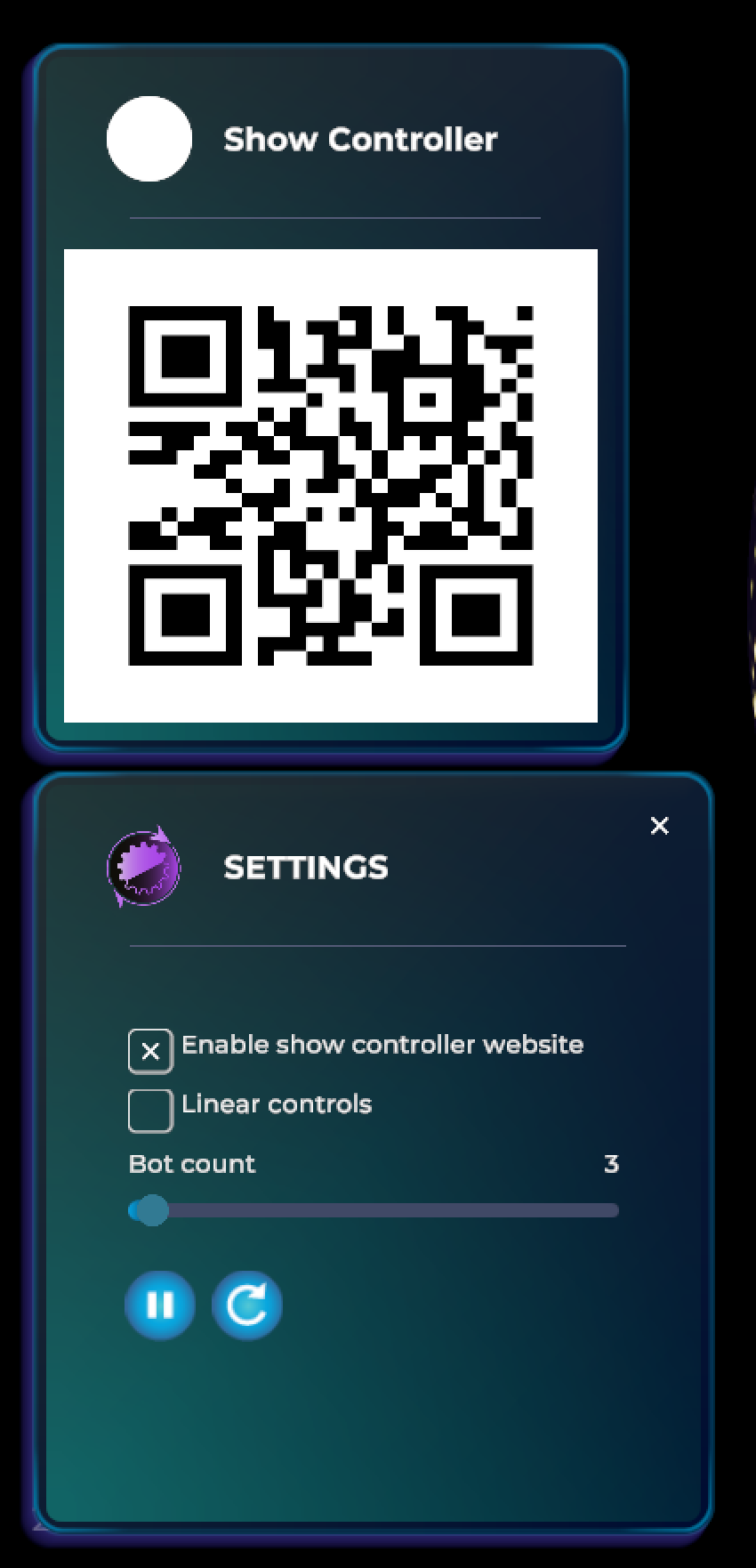
After calling up the show controller via a link or QR code, the individual games/shows can be freely selected, you will receive a short info about the respective controller and a brief description of the selected game. You can activate the QR code simply by checking a box in the Kinetarium game settings menu (The cog icon on the top of the screen).
Troubleshooting:
Kinetarium won’t launch
make sure your system supports all hardware and software requirements
make sure you have the latest version of kinetarium installed
There is no Kinetarium image visible in the dome
depending on your setup (projectors, software), this can have different causes. Please write us at mail@kinetarium.com, we’ll be happy to help
The image in the dome is distorted/cut off
please make sure Kinetarium is running in fullscreen mode
check your resolution settings of your projector and your OS
Connected players won’t show up in the game
make sure players are using the correct URL (kinetarium.com/example)
check the console for any error messages
We’re happy to help with any questions or technical problems! Just contact us at mail@kinetarium.com